GOLD · LIVE
Gold (Spot) $4,064.6▼ 6.70 SJC 1L–10L 143,400,000đ▼ 1,200,000.00 DOJI Hanoi 143,400,000đ▼ 600,000.00 Gold (Spot) $4,064.6▼ 6.70 SJC 1L–10L 143,400,000đ▼ 1,200,000.00 DOJI Hanoi 143,400,000đ▼ 600,000.00 Updated 15:30 · vang.today
BrokersHUB
BrokersHUB.co
Guide · BrokersHUB AI Trading Tool

Install and usage guide.

From download to confident trading: install, activate Pro, the on-chart panel, each feature and troubleshooting. Activation happens entirely in the app.

Part 1

Install and activate Pro.

01

Download and install the app

Download the Windows app from the download page and run the .msi. If Windows shows a SmartScreen warning, choose More info → Run anyway. A macOS version is coming soon.
02

Unlock Pro in the app

Open the app, on the Unlock AI Trading screen enter your license key (BHA-XXXX-XXXX-XXXX) and the email you bought with, then click Activate Pro. To try first, click Later for the free version.
03

Install MetaTrader 5 if needed

Download MetaTrader 5 from your broker, such as XM, Exness, IC Markets or FBS, and log in to your trading account.
04

Install AI Trading into MetaTrader 5

Open the MT5 Setup tab and the app finds every MetaTrader 5 on your machine. Pick one and click Install now (or Install all for several). The tool and chart template are copied automatically, no drag-and-drop. Close MetaTrader 5 first if it is open.
05

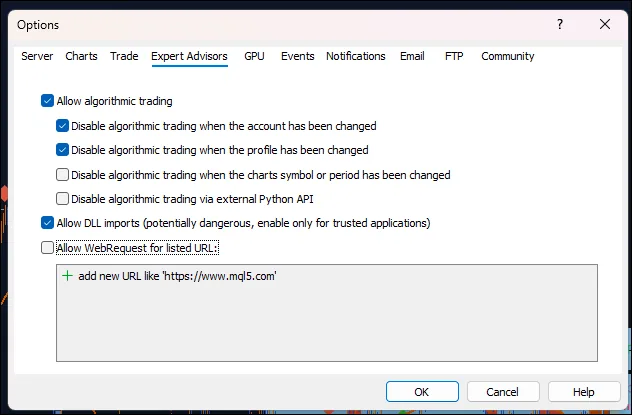
Enable Allow DLL imports in MT5

Go to Tools → Options → Expert Advisors tab, tick Allow DLL imports and click OK. The tool connects locally on your machine, so this is the only setting needed. You do it once.
Step 05: Enable Allow DLL imports in MT5
06

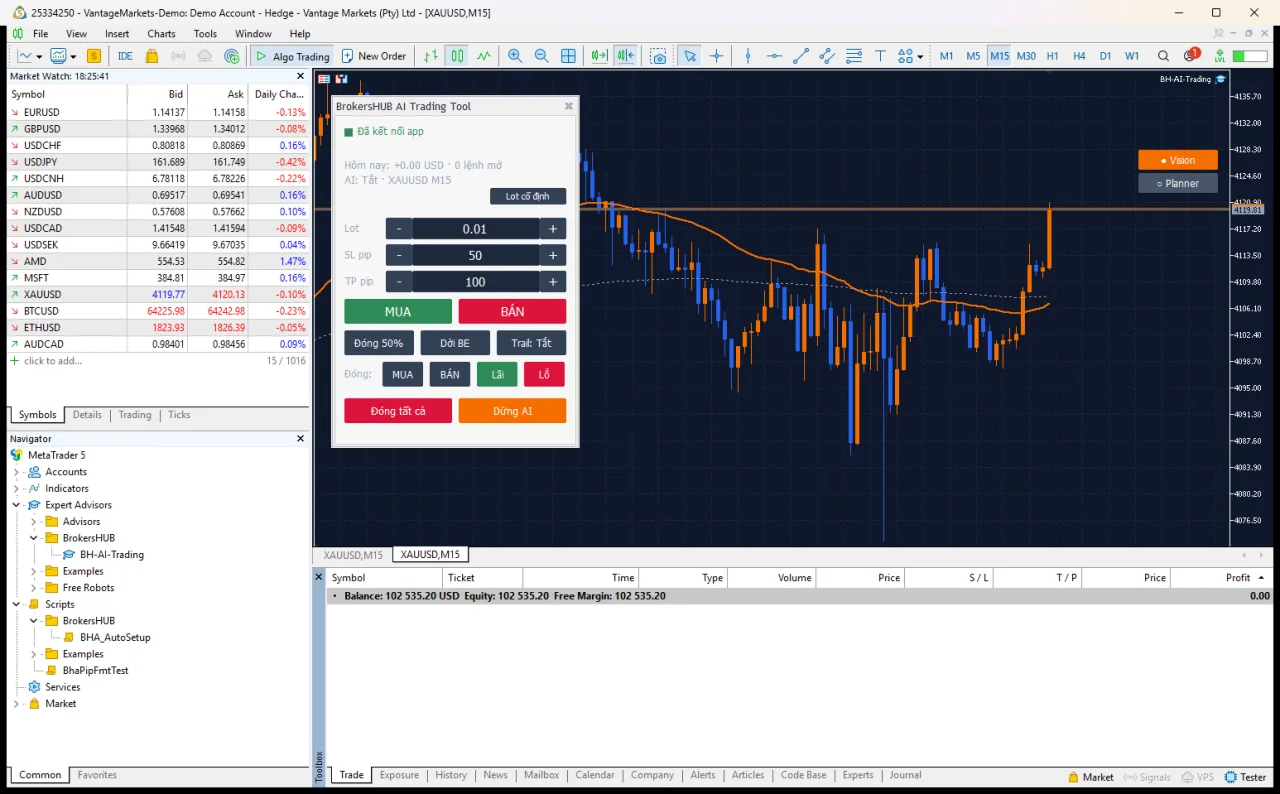
Open MetaTrader 5 with AI Trading

Click Open MetaTrader 5 with AI Trading in the app. MetaTrader 5 opens with the tool attached to the chart and auto-trading on. If MT5 is already open, the app closes and reopens it for you.
Step 06: Open MetaTrader 5 with AI Trading
07

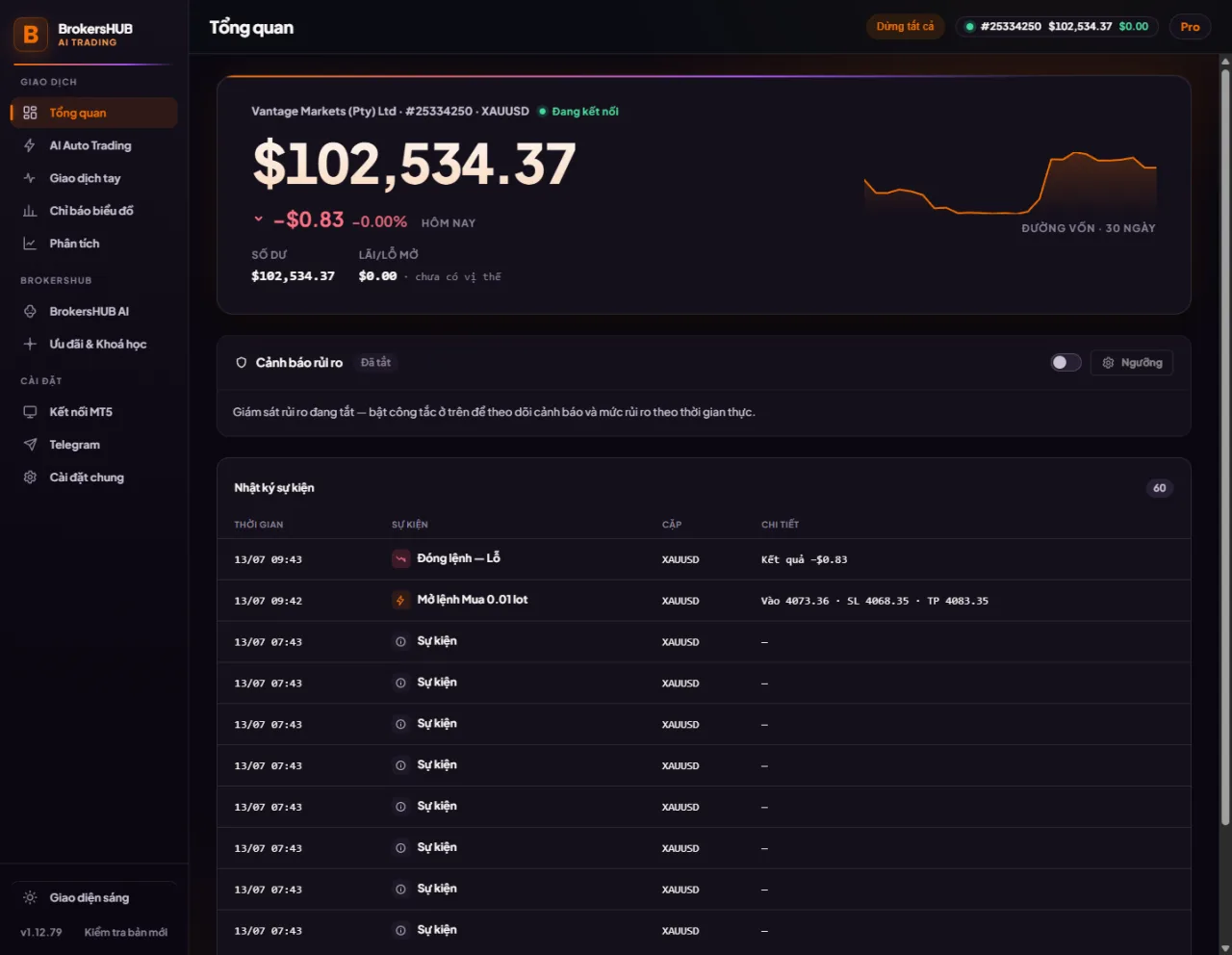
Pro activates automatically

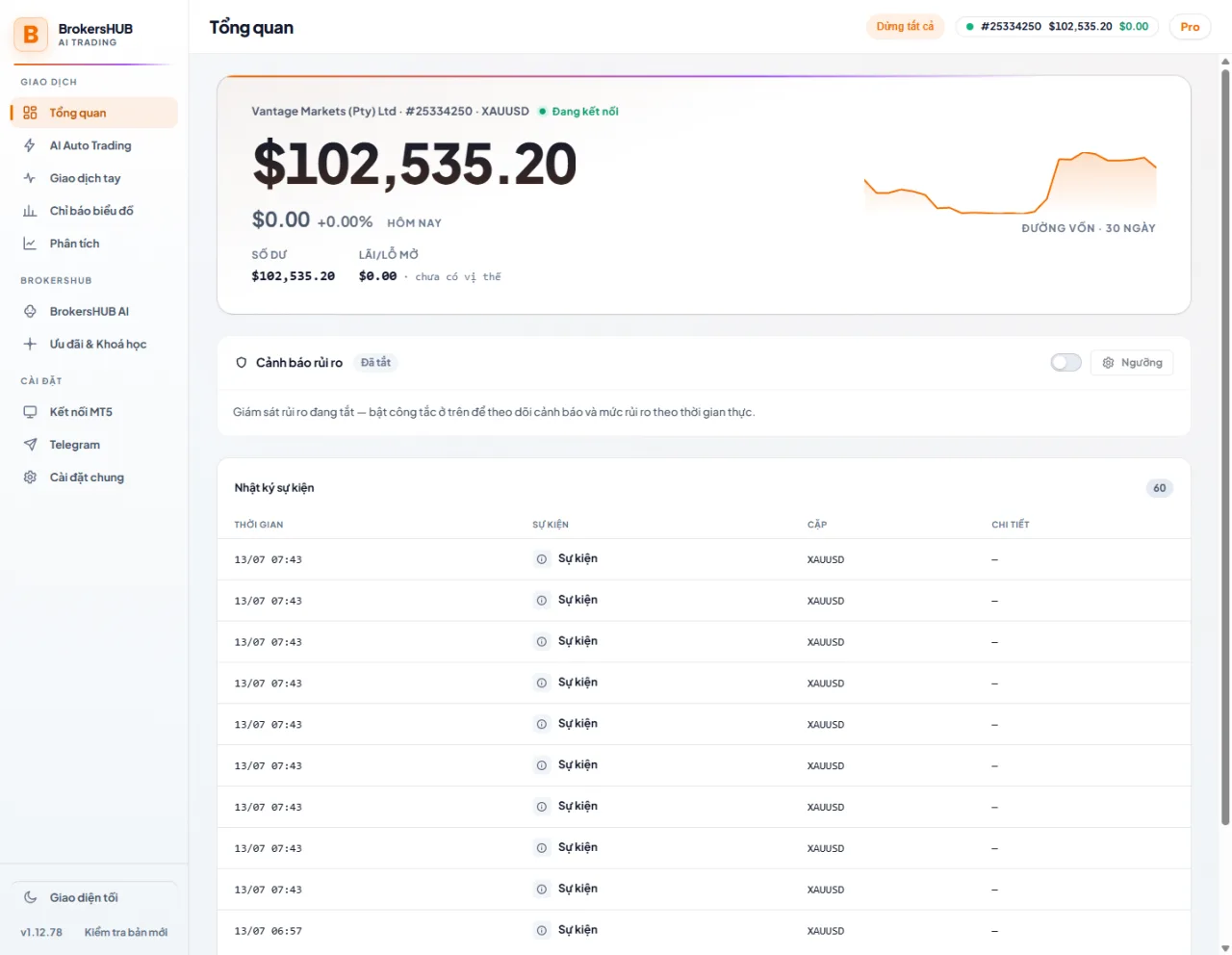
When MetaTrader 5 connects, the app activates Pro for that account. The badge turns Pro with days left on the MT5 Setup tab, and Overview shows the connection and balance.
Step 07: Pro activates automatically
08

Start trading

Place manual orders, turn on AI Trading for auto-entry or AI Signal for suggestions you confirm, use Scalp, or ask the BrokersHUB AI assistant to analyze your chart. The sections below cover each feature in detail.
Part 2

The on-chart panel.

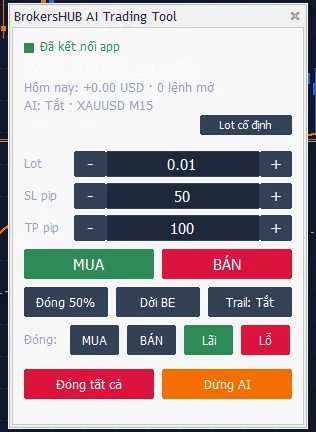
After opening MetaTrader 5 with AI Trading, a control panel appears on the chart with these buttons.

AI Trading panel on the MT5 chart
BUY / SELL
Instant manual order using the current Lot, SL and TP.
Pending
Place a Limit or Stop order.
Trail / BE
Trail the SL with price and move it to break-even.
Close 50%
Take half of the position size.
R:R Planner
Drag an Entry/SL/TP box on the chart; Place opens an order from it.
AI SignalPro
Shows AI-suggested SL/TP overlay — display only, you enter manually.
AI TradingPro
Turns on the auto-trading bot; entry, SL/TP and lot are sized by risk percent.
ScalpPro
Scalping mode with quick presets and short cooldowns.
Kill Switch
Emergency stop for every automated mode at once.
Part 3

Using the app.

Manual trading
Manual trading Free

Place orders and manage positions.

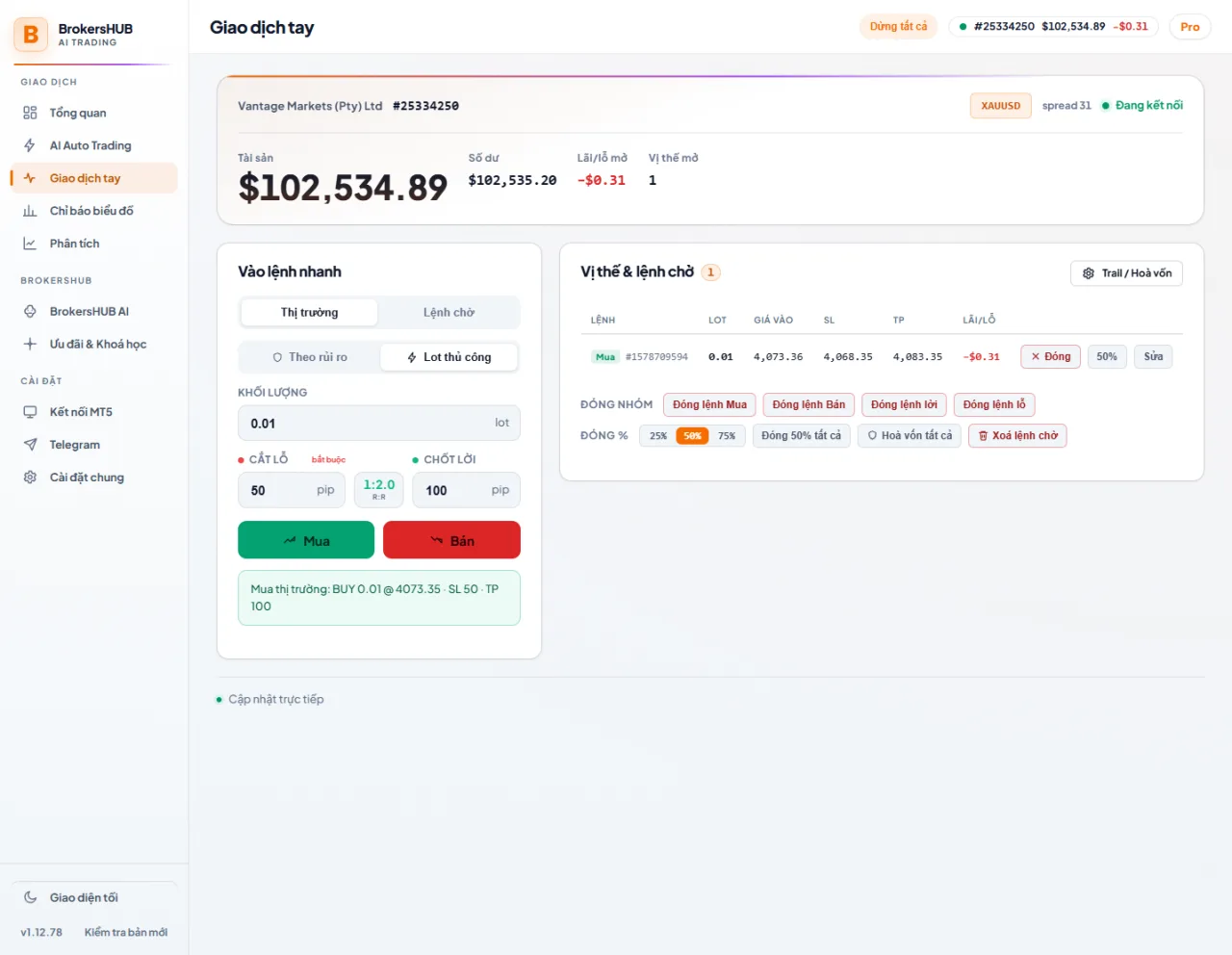
Place market or pending orders, close fully or by half, adjust SL-TP per trade and move all to break-even. Every command returns a real result, success or rejected.

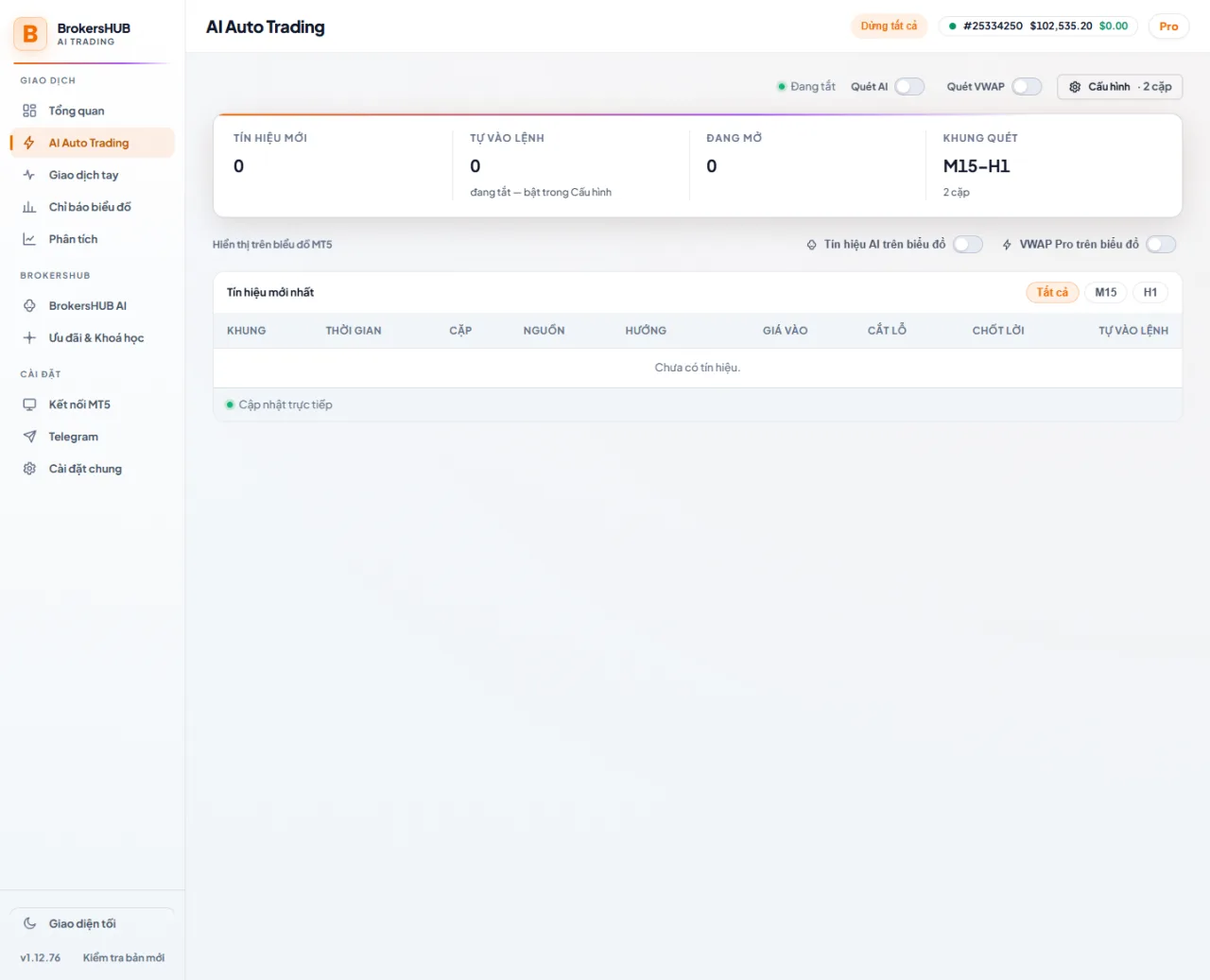
AI Auto Trading
AI Auto Trading Pro

Let the tool trade multiple pairs.

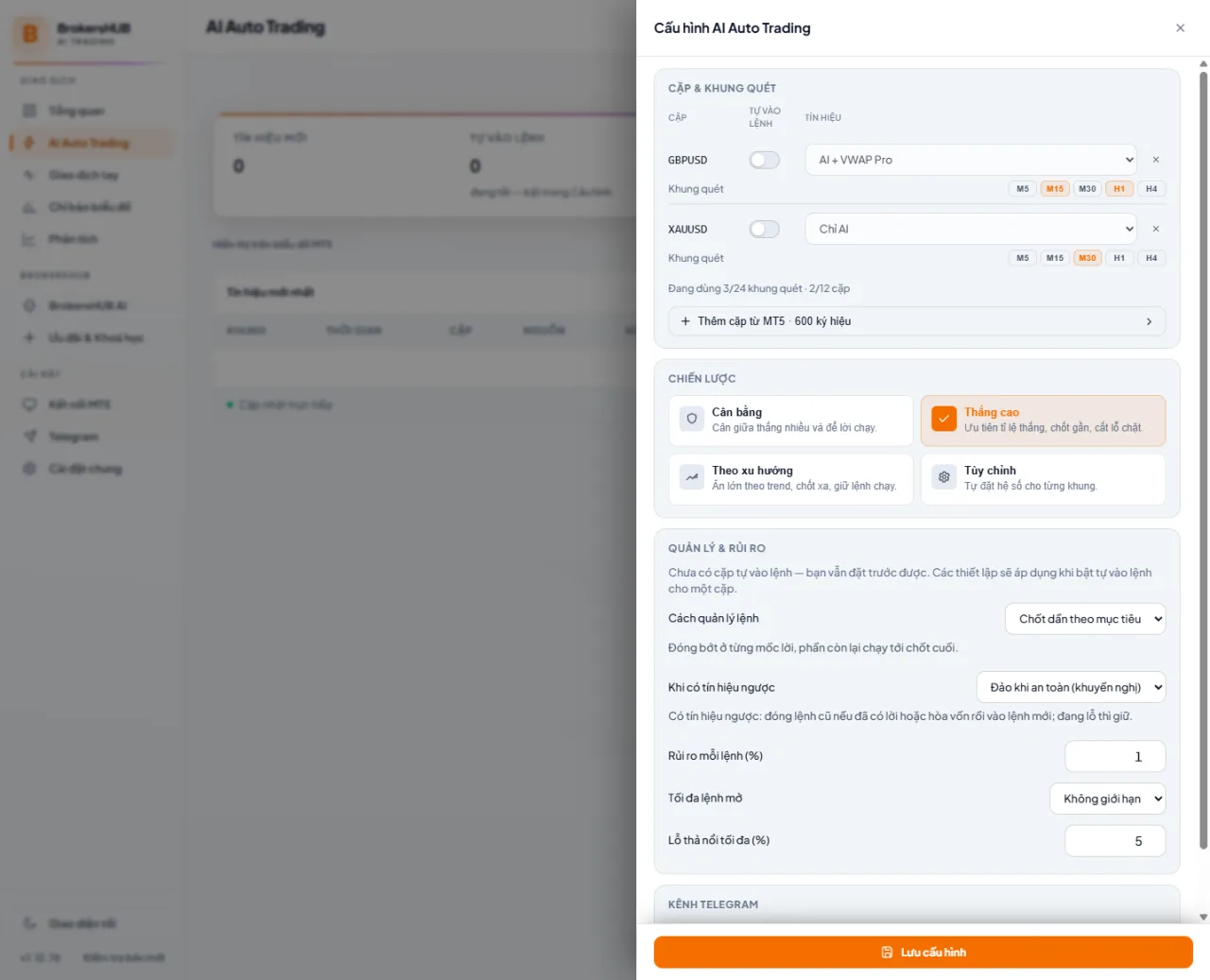
Add multiple pairs; each picks a signal source (AI only · VWAP Pro only · both) and up to 3 scan timeframes. Pick one of three built-in strategies — Balanced, High win-rate, Trend — or Custom per-timeframe coefficients. Separate risk controls: risk per trade, trade management, opposite-signal handling. The daily-loss brake applies to every strategy.

Bot Trade
Bot Trade Pro

Bot fleet — 5 strategies in parallel.

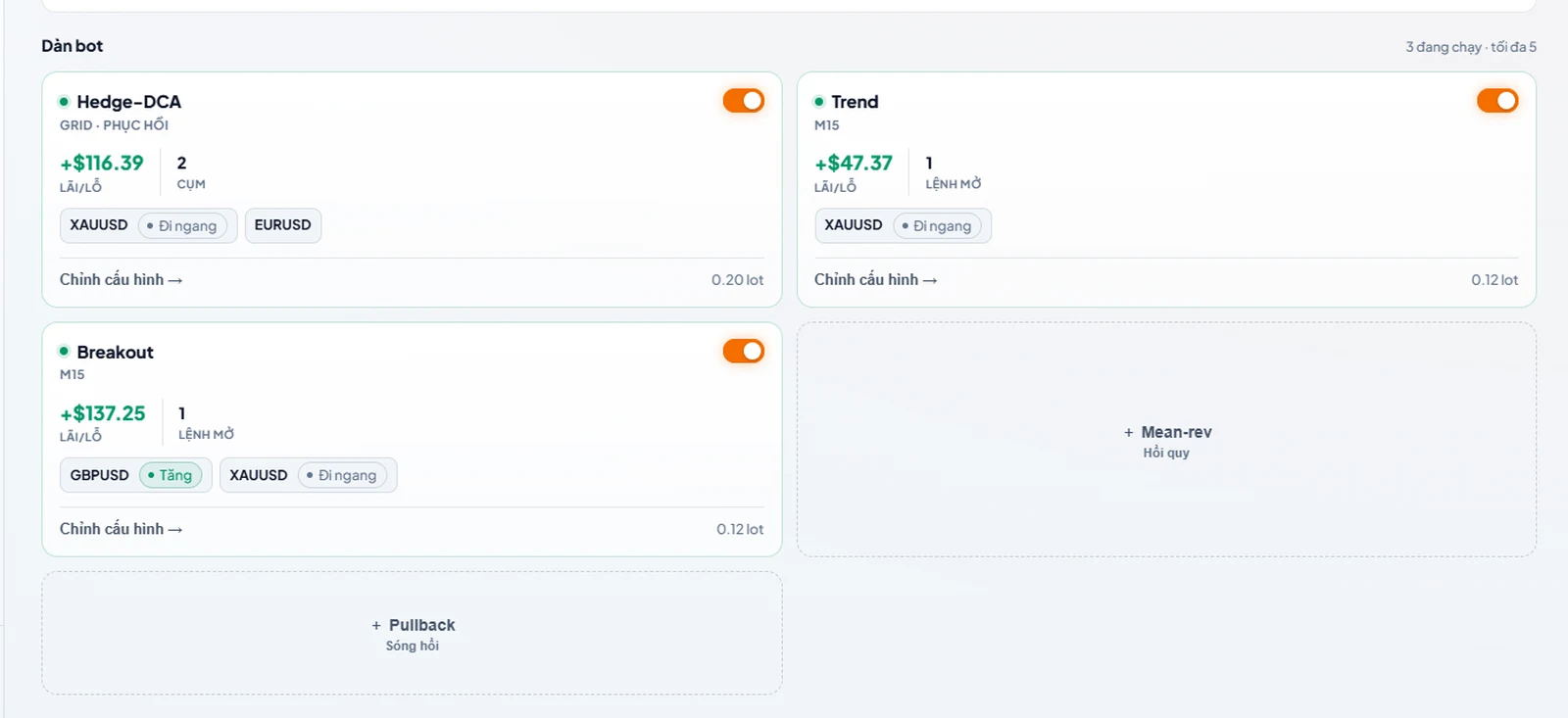
Run up to 5 bots at once, each with its own config: Hedge-DCA averages down and takes profit on the whole basket by percent of equity, plus 4 signal bots — Trend, Breakout, Mean-rev, Pullback — with preset SL/TP. Set an activation price per pair so the bot only enters when price hits your level, tune news-avoidance per bot, and backtest 30 days right inside the config before running. A hard basket stop-loss is mandatory — a pair that hits it pauses alone; hit Resume whenever you choose.

Signal simulation
Signal simulation Pro

Backtest 3 strategies before going live.

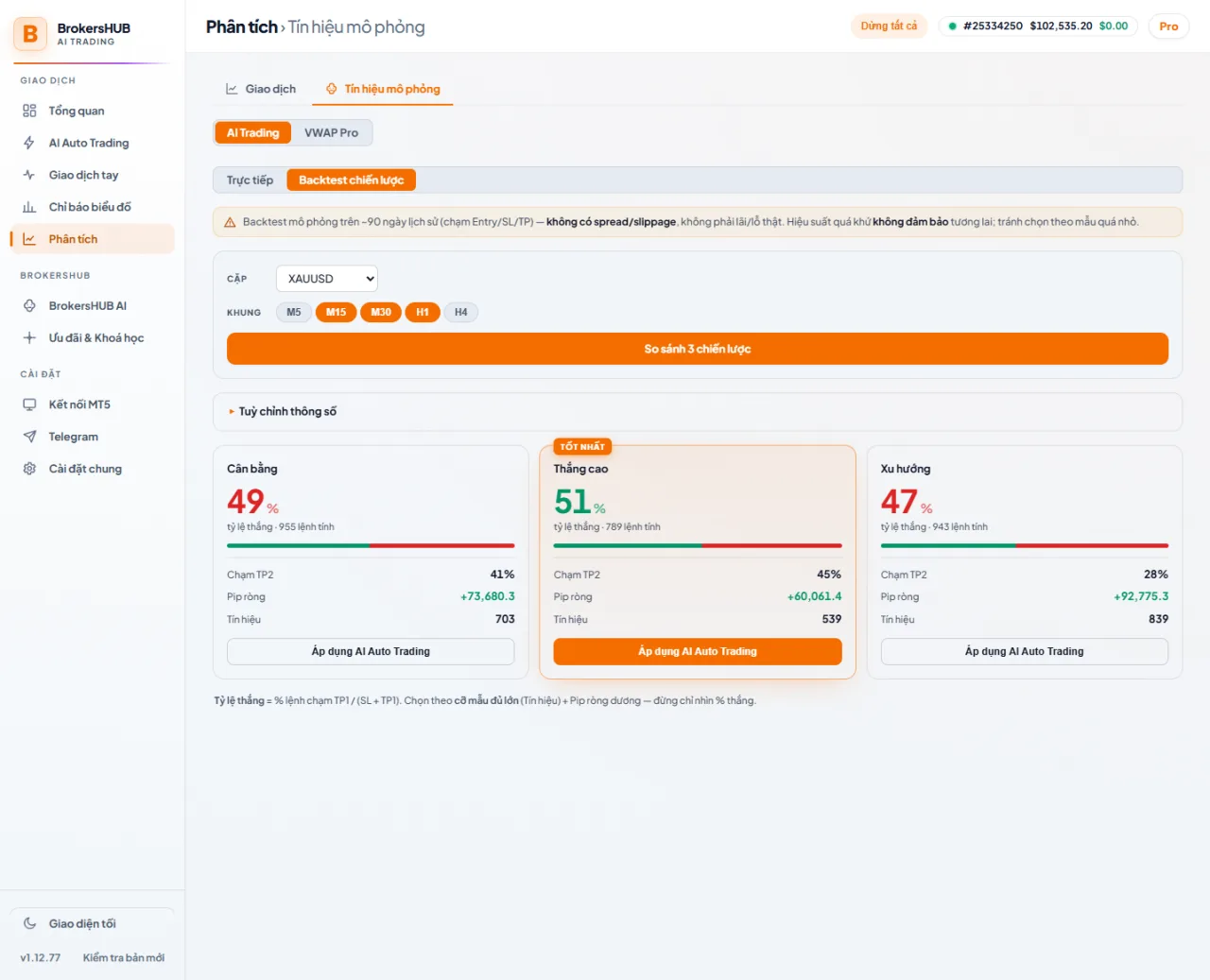
On the Analytics tab, pick a pair and several timeframes then hit Compare 3 strategies — the tool replays about 90 days of history and shows win rate, net pips and signal count per strategy, flagging the best. Click Apply to AI Auto Trading to push the pair, timeframes and strategy straight into the bot. Measured in pips for reference — past results do not guarantee future ones.

BrokersHUB AI
BrokersHUB AI Pro

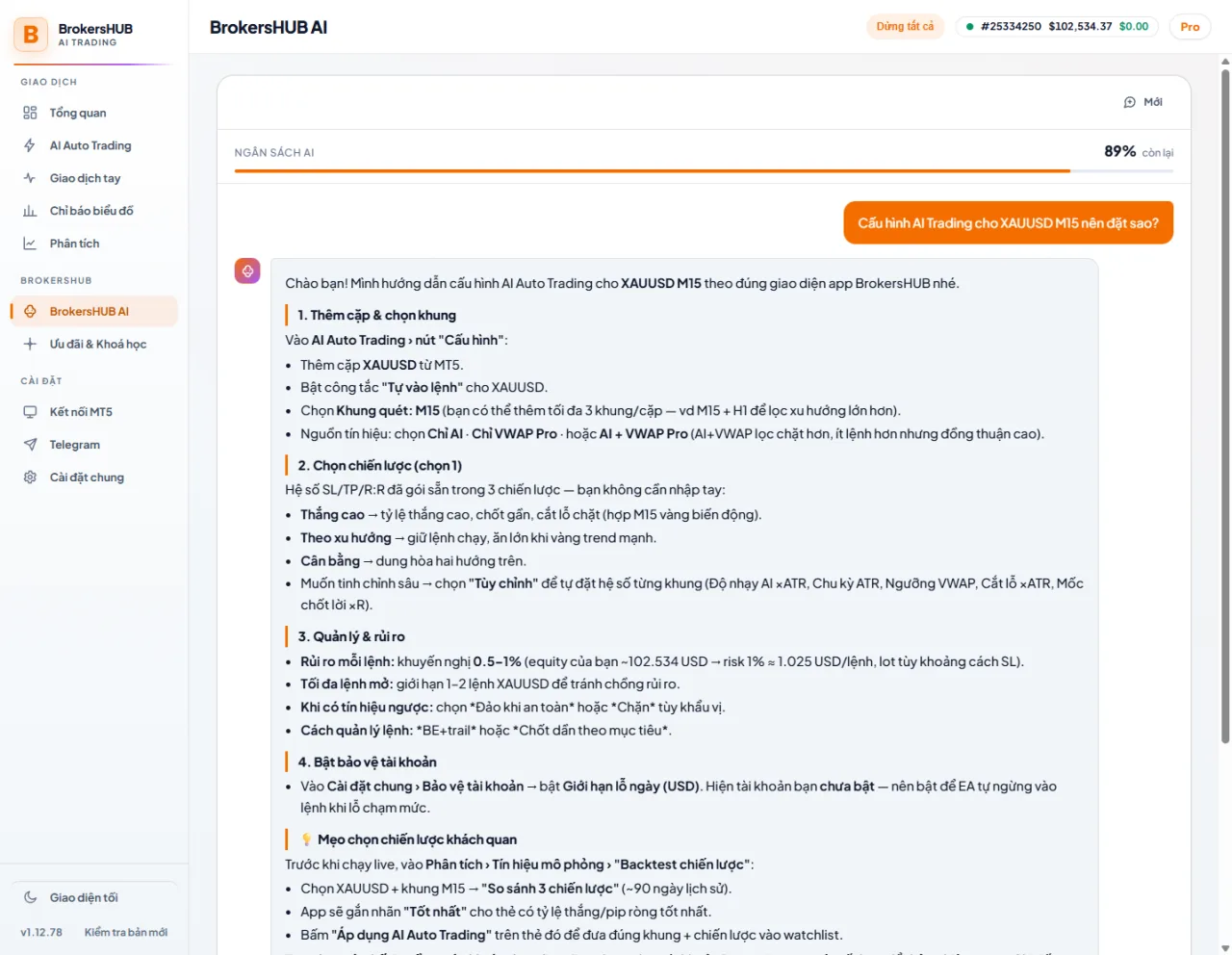
Ask the AI to read your chart.

Capture the chart and ask the assistant. It reads context, price structure and support/resistance, then gives a scenario with risk guidance, based on your real MT5 prices and open trades. You can also ask how to configure the tool — it guides you through the exact screens and features in the app.

Analytics
Analytics Free

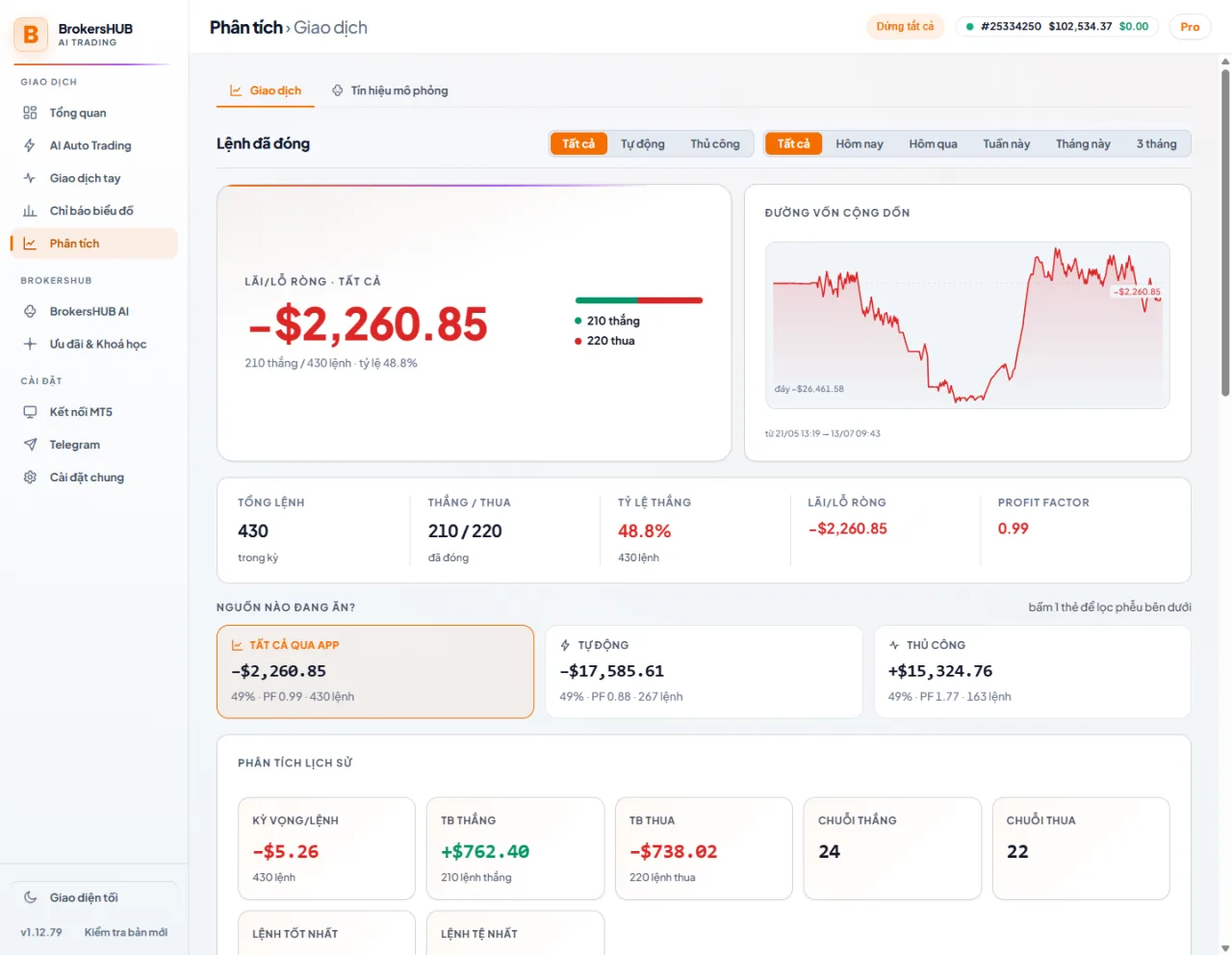
Track your performance.

See combined P&L across accounts, win rate, profit factor, expectancy, win/loss streaks and the equity curve. The "Bot results by strategy" section shows each bot type head-on — Hedge-DCA counted by basket, signal bots by trade — so you know which bot is pulling its weight. Split P&L by source and currency, and export to CSV.

Multi-pair scan
Multi-pair scan Pro

Scan signals across pairs.

Inside AI Auto Trading, the signal table watches many pairs and timeframes at once on one screen, sorted by time so you catch opportunities quickly — with direction and source (AI or VWAP Pro).

Telegram
Telegram Pro

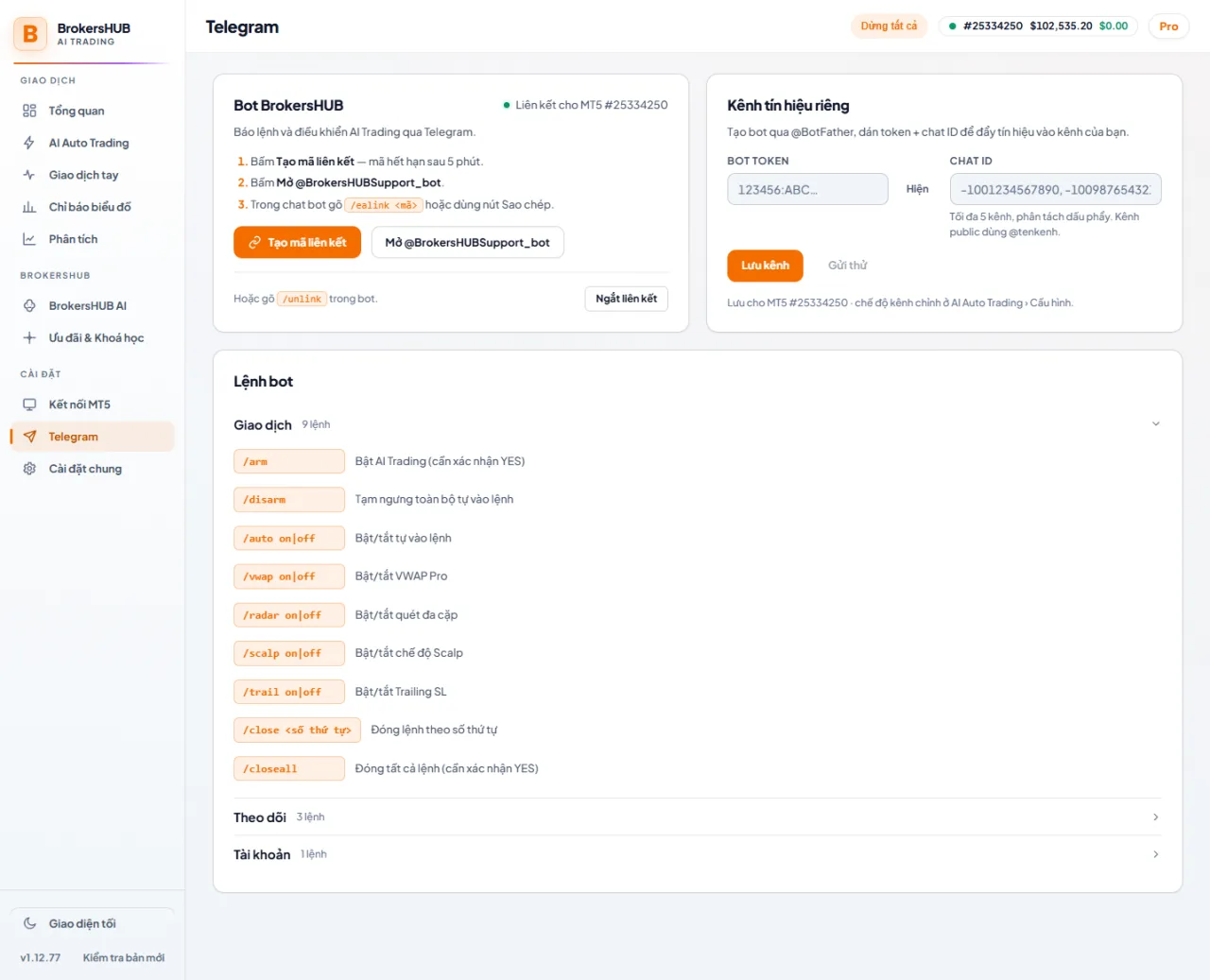
Control it from Telegram.

Link the BrokersHUB bot to get signals, trade-status notifications and remote control. Bot Trade also reports on its own: activation price hit, basket take-profit, or a pair paused by money management — even when you are away from your computer.

Chart indicators
Chart indicators Free

Draw indicators on the MT5 chart.

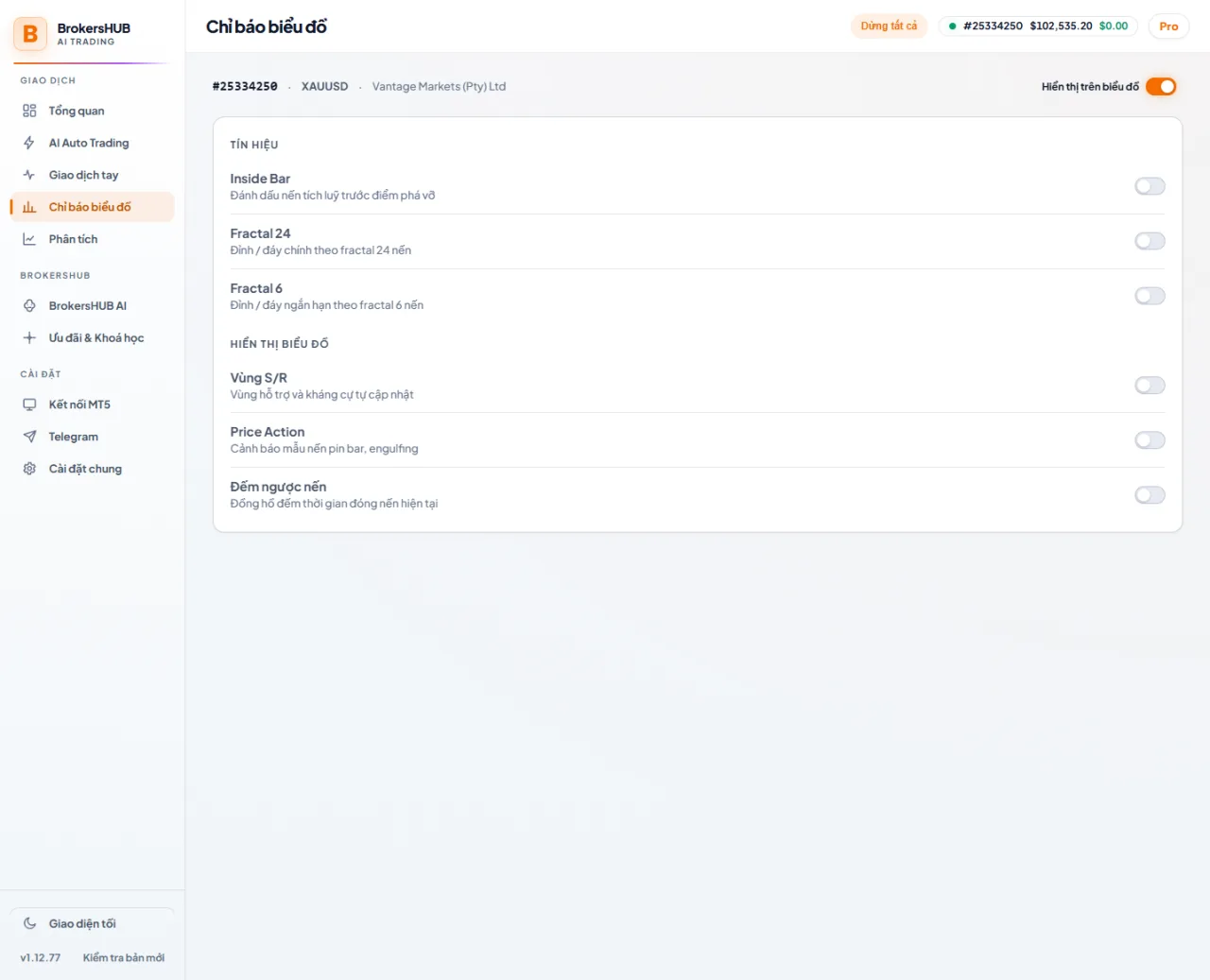
Toggle each indicator drawn straight on the chart: Inside Bar, Fractal 24, Fractal 6, auto-updating support/resistance zones, Price Action patterns (pin bar, engulfing) and a candle-close countdown. Each has a short description in the app.

Part 4

Managing risk.

Daily-loss limit

In the Settings tab under Account protection, set a maximum daily loss. When realized loss hits it, the tool stops new entries until the next day and resumes automatically. Open trades are still managed normally.

Kill Switch

An emergency stop that turns off every automated mode at once, for volatile markets or when you simply want to pause.

AI Signal vs AI Trading

AI Signal only draws suggested entries and SL/TP for you to decide. AI Trading places orders itself. The first time you enable AI Trading there is always a confirmation step.

Part 5

Free and Pro.

Free covers manual trading and chart viewing. All AI and automation belong to Pro.

FeatureFreePro
Manual buy, sell and close
Chart Vision and R:R Planner (view, draw)
AI Signal entry alerts
AI Trading auto trading
VWAP Pro
Scalp Mode
BrokersHUB AI assistant
Auto trade management
Pending orders and R:R Planner Place
Telegram alerts
Bot Trade — fleet of 5 parallel bots
Part 6 · Updates

Always on the latest version.

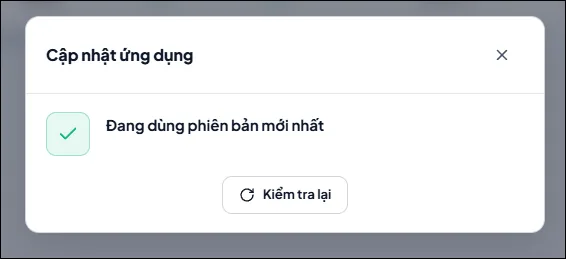
When a new version is available, the app notifies you and downloads it, you just confirm. No uninstalling, and the tool inside MT5 updates along with it.

App update dialog
Part 7 · Appearance

Light and dark themes.

Switch between the two modes anytime using the toggle at the bottom of the sidebar.

Light theme
Light
Dark theme
Dark
Part 8 · Troubleshooting

If something is off.

The chart opened but the tool is not running

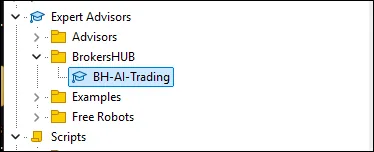
Open the Navigator panel in MT5 (Ctrl+N), find Expert Advisors, then double-click BH AI Trading to attach it again. Make sure AutoTrading is on in the MT5 toolbar.
The chart opened but the tool is not running

The tool shows a sad face on the chart

Turn on the AutoTrading button in the MetaTrader 5 toolbar; it must be green for the tool to run.

The tool cannot reach the app

Recheck step 5: in Tools → Options → Expert Advisors, make sure Allow DLL imports is ticked. Then re-attach the tool.

Still shows Free after buying Pro

Log in with the exact license key and email from your purchase, and make sure the order is confirmed. Pro activates within 24 hours after BrokersHUB receives the USDT.

AI Trading is on but does not enter

Check that you have not hit the daily-loss limit, are not in a cooldown, have not reached the max open trades, and that spread is not too wide. The on-chart panel states the reason.

Update says "latest" but it is still old

Wait a minute or two for the CDN to refresh and try again, or download the latest installer directly from the BrokersHUB download page.
Part 9 · FAQ

Frequently asked questions.

Getting started

How are the app and the MT5 tool different?
The app is a desktop control panel for configuration and stats. The tool inside MetaTrader 5 is where orders are actually placed on the chart. They connect automatically once AutoTrading is on in MT5.
What do I need to start?
Windows 10/11 (64-bit), MetaTrader 5 and a broker account with gold (XAUUSD). A macOS version is coming soon.
Can I trade a different pair?
Yes. Change the symbol on the chart that has the tool (right-click the chart or drag a symbol from Market Watch). The tool picks up the new pair. Do not open a second chart for the same pair.

Configuring AI Auto Trading

Where do I configure a pair?
Open the AI Auto Trading tab and click Configure. Add a pair from MT5; for each pick: Auto-entry toggle, signal source (AI only · VWAP Pro only · both) and scan timeframes (up to 3 per pair). Save to run.
Which strategy should I pick?
Three strategies with tuned coefficients (no manual entry): Balanced (win often, let winners run), High win-rate (win often, close near, tight stops), Trend (close far, hold). Unsure? Run a Backtest to compare.
What can I set in “Custom”?
Set per-timeframe coefficients: AI sensitivity (×ATR), ATR period, VWAP gate, Stop-loss (×ATR) and Take-profit ladder (×R). Leave a field blank to use the Balanced default.
What is in Management & risk?
Trade management (scale-out · BE+trail · hybrid), opposite-signal handling, risk per trade (%), max open trades and max floating loss (%). Recommended risk 0.5–1% per trade, never above 2%.

Signal simulation & Backtest

How do I use Backtest?
Go to Analytics → Signal simulation → Backtest. Pick a pair and several timeframes, then hit Compare 3 strategies (~90 days, in pips). Choose by positive net pips and a large enough sample (signal count), not win rate alone.
What does “Apply to AI Auto Trading” do?
Pushes that pair into the bot with the backtested timeframes and chosen strategy, keeping your other pairs unchanged.
Live vs Backtest?
Live shows real-time signal stats; Backtest replays about 90 days of history. Both are in pips, not real P&L — see real money on the Trading tab.

Bot Trade

How does the activation price work?
Set a price level per pair in the Hedge-DCA config. The bot only opens its first order when price touches that level — like a pending order, used once then removed. Optional expiry of 4, 8 or 24 hours; if untouched by then, the level clears itself.
Does the bot avoid news?
Your call — each bot has its own news-avoidance switch and minute window (up to ±15 minutes around red news, sourced from the Calendar tab). Turn it off for bots you want trading the news; it only blocks new entries, open trades are still managed.
What happens when a pair hits the basket stop?
That pair’s basket is closed and only that pair pauses — the others keep running. The bot card names the paused pair with a Resume button, and Telegram notifies you if linked.

Automation and signals

AI Signal vs AI Trading?
AI Signal only draws suggested entries and SL/TP for you to decide. AI Trading places orders itself. The first time you enable AI Trading there is always a confirmation step.
What is Scalp?
A quick preset for scalping gold on small timeframes: short cooldown, tight SL/TP, fast trail. Only use it while watching; turning Scalp off restores your previous settings.

Manual trading and safety

How do I place a manual order?
On the Trading tab: choose Market or Pending, Risk-based (%) or Manual lot, a required SL and Take-profit (R:R shown), then Buy or Sell. Manage positions: Close, Close 50%, Edit SL/TP, Trail/BE.
How does the daily-loss limit work?
Go to Settings → Account protection and set a Daily-loss limit (USD). When realized daily loss hits it, new entries stop (auto and manual) until the next day, then resume. Set 0 to disable.
How do I stop everything?
The Stop all button at the top of the app closes every trade and turns off all automation across accounts. The MT5 chart has a similar Kill Switch.

AI assistant, license and updates

What can the BrokersHUB AI assistant do?
It analyzes charts you capture (price structure, support/resistance, scenarios with risk guidance) using your real MT5 prices and open trades; and it walks you through configuring the tool by the exact app screens. For reference only, not investment advice.
How do updates work?
The app notifies you and downloads the new version; you just confirm. The MT5 tool updates along with it — restart MT5 to apply.
Still shows Free after buying Pro?
Log in with the exact license key and purchase email, and make sure the order is confirmed. Pro activates within 24 hours after BrokersHUB receives payment.

Support

Still need help?

Message BrokersHUB on Telegram for hands-on install help.